



Run a command multiple times and glance at the outputs.
mult -- curl -sSif https://flaky.service.example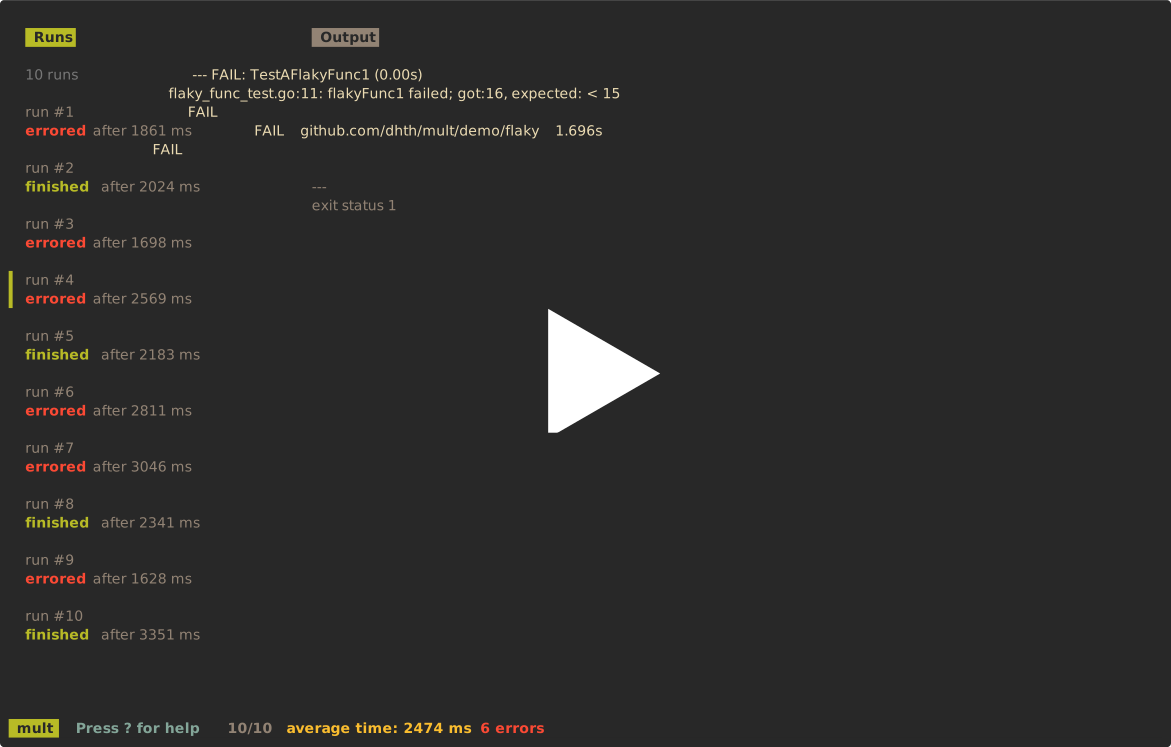
mult can come in handy in a few scenarios, such as:
- Investigating inconsistent responses from a web server
- Checking the outcomes of a flaky test suite
- Running quick and dirty performance/stress tests
Download a pre-built binary from the latest release. See Verifying release artifacts for instructions on verifying your download.
You can also install from source using the go toolchain:
go install github.com/dhth/mult@latestmult -n 10 -- curl -sSif https://flaky.service.exampleThis runs the command 10 times, shows the status and duration of each run in the
left pane, and displays the selected run's output in the right pane. Press
<tab> to switch panes and ? for help.
mult runs commands concurrently by default. Without --num-runs, it starts 5
runs. Use --sequential to run them one at a time.
The -- separator prevents command flags from being interpreted as mult
flags. mult executes the command directly, without invoking a shell, and
captures its combined standard output and standard error. To use shell features
such as pipes, redirects, or variable expansion, invoke a shell explicitly:
mult -- sh -c 'curl -sS https://example.com | wc -c'Each invocation receives a 1-indexed MULT_RUN_NUM environment variable.
mult -n 10 -- yourcommandThe number of runs must be between 2 and 1000, inclusive. To enter it interactively instead, use:
mult -i -- yourcommandmult -s -- yourcommand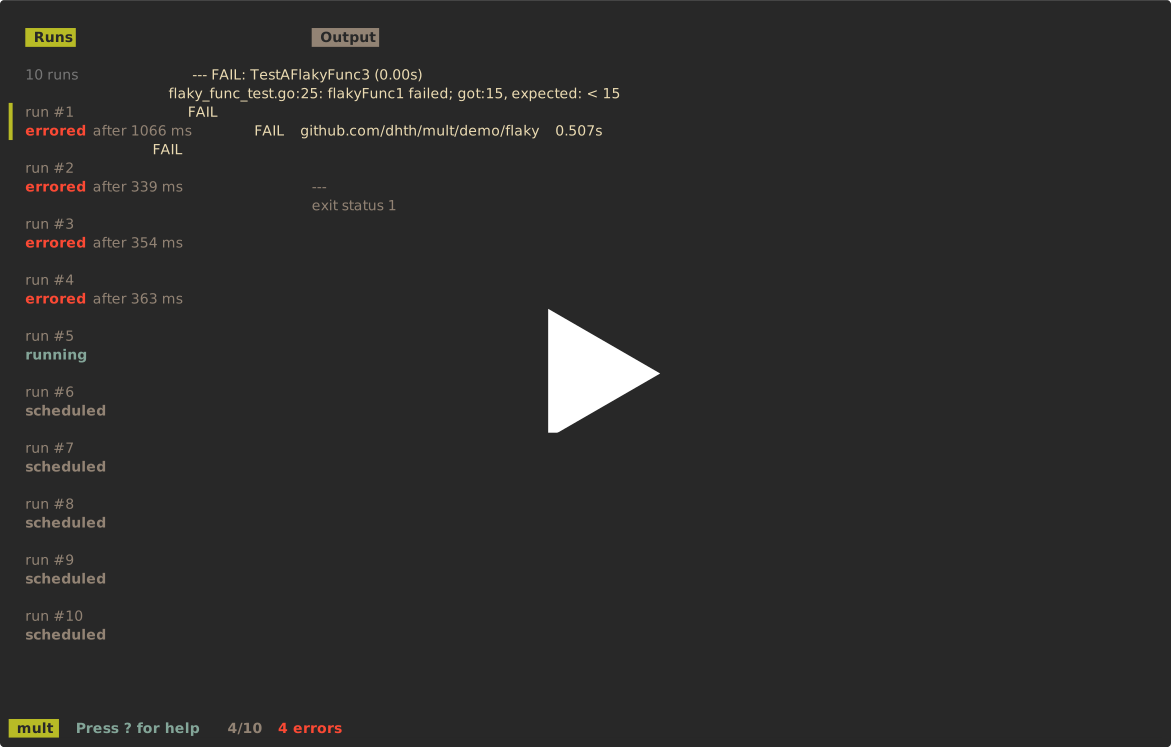
Use --delay to wait between sequential runs. The value is in milliseconds.
mult -s -d 500 -- yourcommand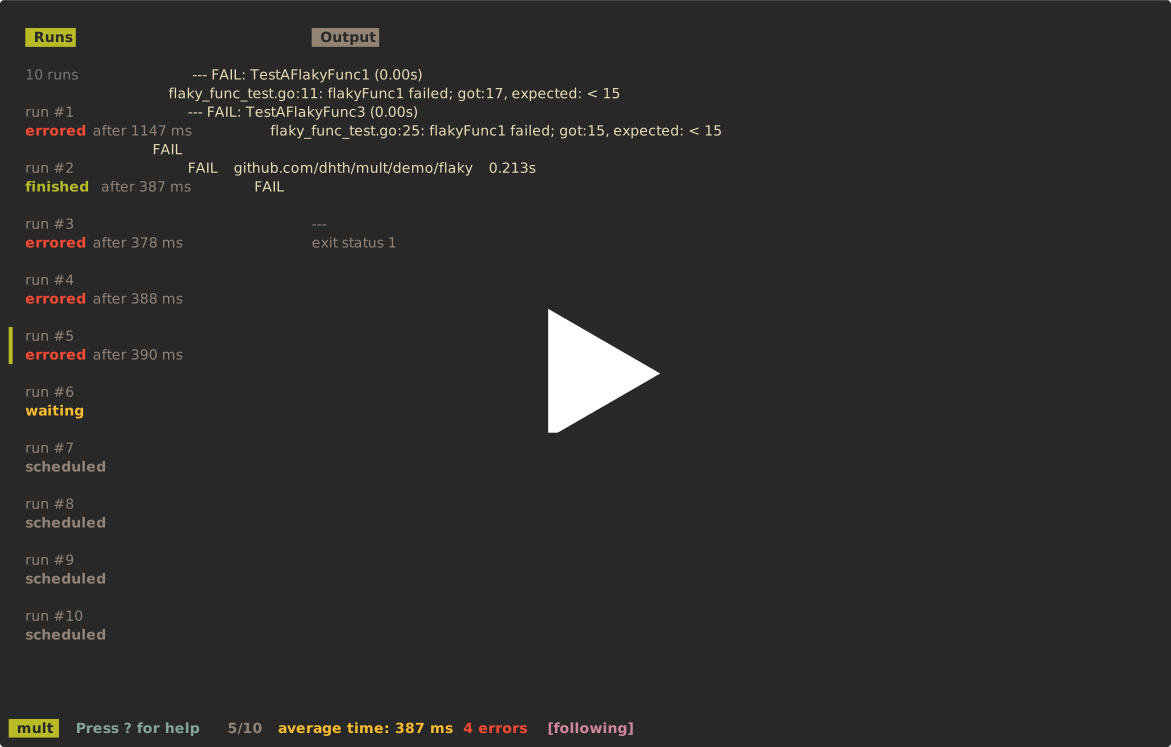
mult -s -F -- yourcommand # stop on the first failure
mult -s -S -- yourcommand # stop on the first success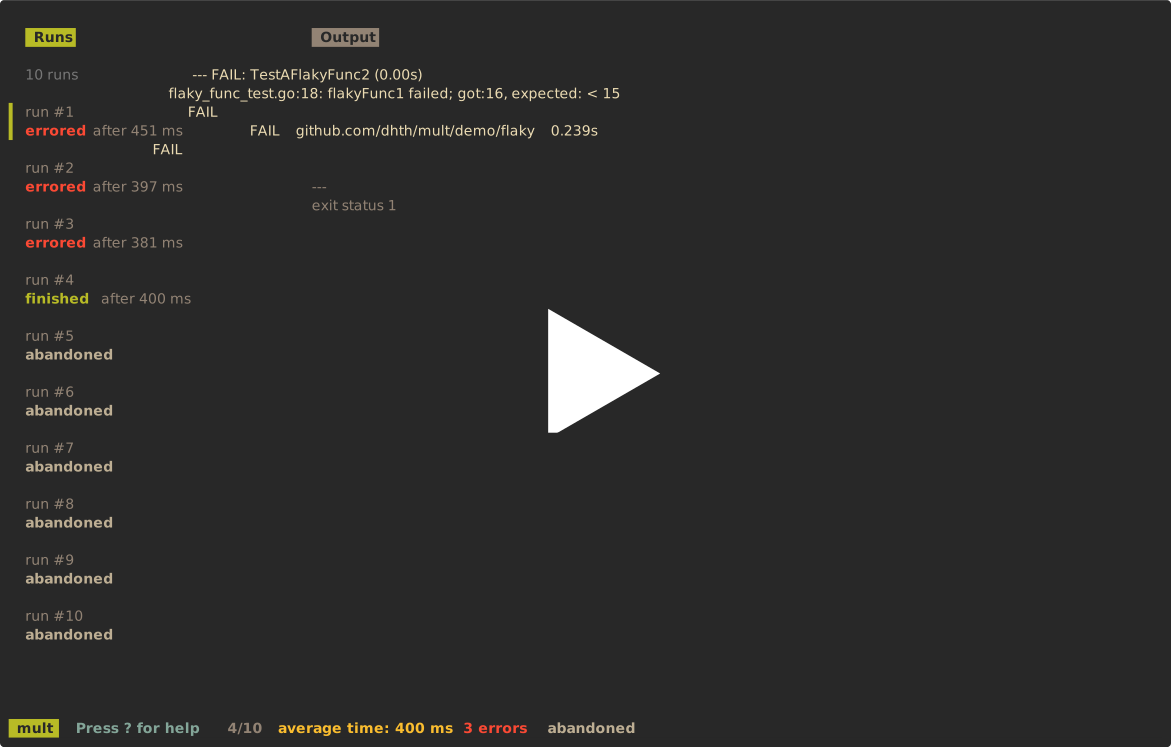
In sequential mode, follow mode automatically selects the latest run:
mult -s -f -- yourcommandPress <ctrl+f> to toggle follow mode from the run list or output pane.
The --delay, --follow, --stop-on-first-failure, and
--stop-on-first-success flags only apply in sequential mode.
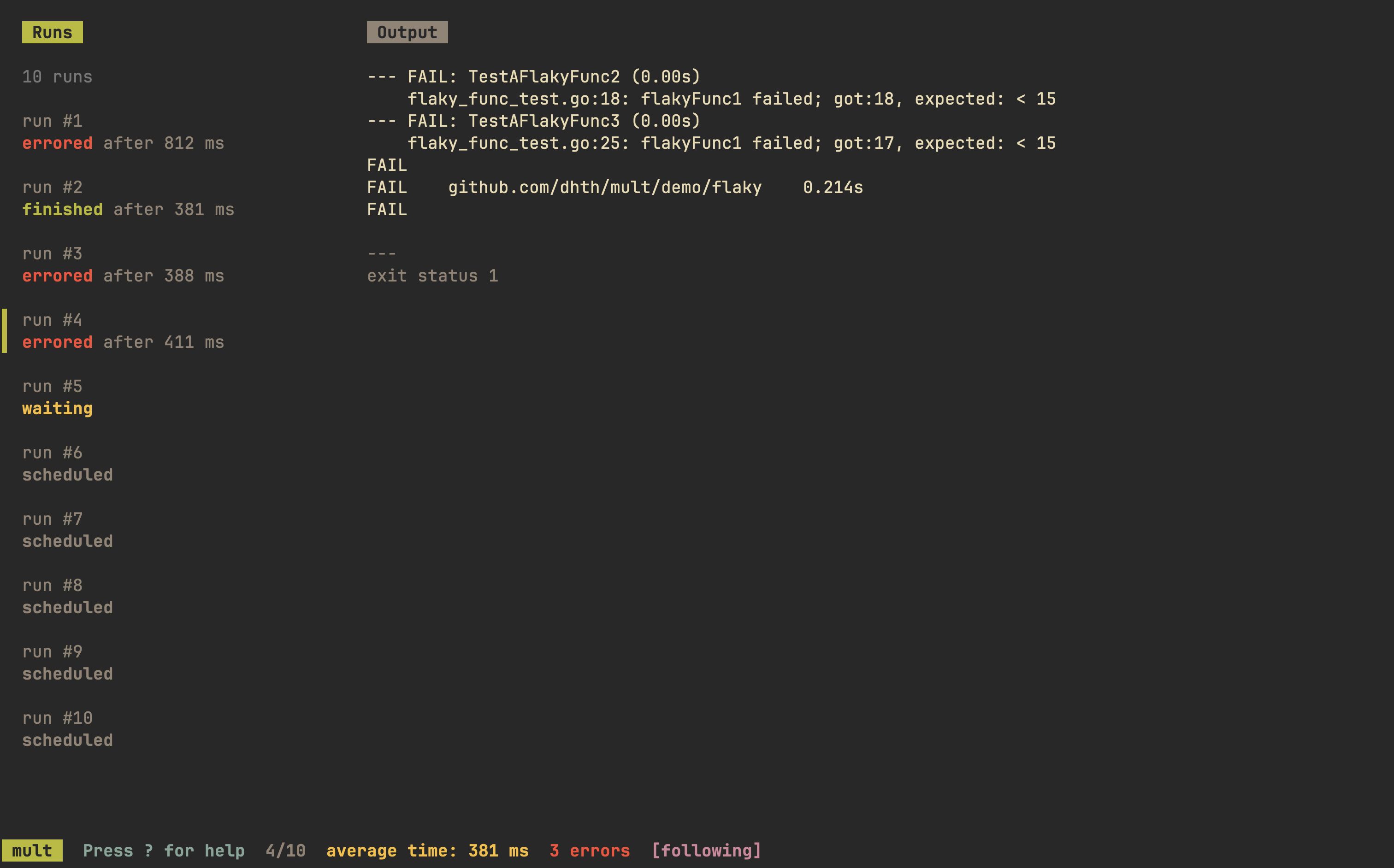
mult has three views:
- Command Run List View — Shows the status and duration of each run
- Output View — Shows the combined output of the selected run
- Help View — Shows the available keyboard shortcuts
| Key | Action |
|---|---|
<tab> / <shift+tab> |
Switch focus between panes |
? |
Show or hide the help view |
q / <esc> |
Go back or quit |
<ctrl+c> |
Quit immediately |
| Key | Action |
|---|---|
j / ↓ |
Go to next run |
k / ↑ |
Go to previous run |
l / → |
Go to next page (if applicable) |
h / ← |
Go to previous page (if applicable) |
g |
Go to start of the list |
G |
Go to the end of the list |
<ctrl+r> |
Restart all runs |
<ctrl+f> |
Toggle follow mode |
| Key | Action |
|---|---|
j / ↓ |
Scroll output down |
k / ↑ |
Scroll output up |
l / → |
Go to next run |
h / ← |
Go to previous run |
<ctrl+r> |
Restart all runs |
<ctrl+f> |
Toggle follow mode |
mult [flags] -- <command>
| Flag | What it does |
|---|---|
-n, --num-runs <number> |
Set the number of runs (default: 5) |
-i, --interactive |
Prompt for the number of runs; takes precedence over -n |
-s, --sequential |
Run commands sequentially |
-d, --delay <milliseconds> |
Wait between sequential runs |
-f, --follow |
Start sequential runs with follow mode enabled |
-F, --stop-on-first-failure |
Stop sequential execution after the first failure |
-S, --stop-on-first-success |
Stop sequential execution after the first success |
-h, --help |
Show help |
Run mult --help for the authoritative command-line reference.
Each release includes checksums for all artifacts. The checksum file is signed
using cosign (version
3.1.3).
Replace x.y.z below with the release version you want to verify.
-
Get the checksum and cosign signature from the release:
curl -sSLO https://github.com/dhth/mult/releases/download/vx.y.z/mult_x.y.z_checksums.txt
curl -sSLO https://github.com/dhth/mult/releases/download/vx.y.z/mult_x.y.z_checksums.txt.sigstore.json
-
Verify the checksum file's signature:
cosign verify-blob \ --bundle mult_x.y.z_checksums.txt.sigstore.json \ --certificate-identity-regexp 'https://github\.com/dhth/mult/\.github/workflows/.+' \ --certificate-oidc-issuer "https://token.actions.githubusercontent.com" \ mult_x.y.z_checksums.txt -
Download the archive for your platform and validate its checksum. For example, for Linux x86-64:
curl -sSLO https://github.com/dhth/mult/releases/download/vx.y.z/mult_x.y.z_linux_amd64.tar.gz
sha256sum --ignore-missing -c mult_x.y.z_checksums.txt
-
Once both checks pass, extract the archive:
tar -xzf mult_x.y.z_linux_amd64.tar.gz
./mult -h
# profit!